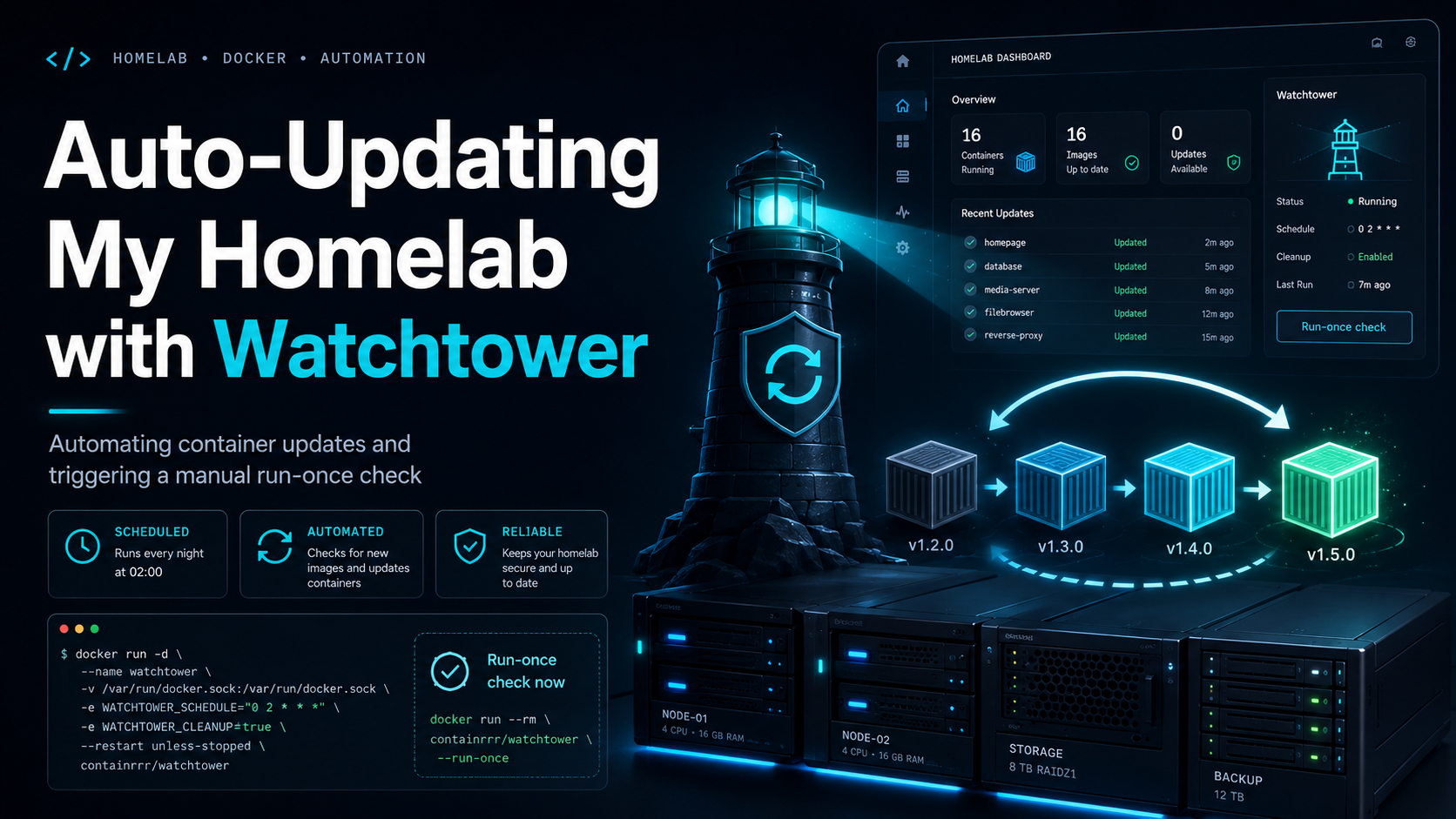
Auto-Updating Docker Containers in My Homelab with Watchtower
One small problem with running a homelab is that things slowly get old.
Not broken. Not unusable. Just old.
You set up a service, it works, you move on to the next thing, and after a few weeks or months you realize half your containers are still running older images.
That was the case with my Homepage dashboard.
Homepage is the main dashboard I use in my homelab. It gives me one place to open services like Proxmox, Pi-hole, Grafana, Prometheus, Filebrowser, qBittorrent, Tailscale, and other local tools.
The dashboard was working fine, but I noticed I was not keeping the container updated regularly.
The image was already using:
image: ghcr.io/gethomepage/homepage:latest
So technically, the update process was simple:
docker compose pull
docker compose up -d
But I did not want to keep doing that manually every time.
The Problem
The problem was not that updating was hard.
The problem was that it was easy to forget.
In a homelab, there are always more interesting things to do than updating containers:
- adding new services
- fixing DNS
- cleaning up Proxmox
- testing monitoring
- setting up storage
- breaking something else by accident
So old containers slowly become part of the system.
For something like Homepage, I wanted updates to happen automatically.
But I also did not want every important service in the lab to randomly update without control.
There is a difference between:
Auto-update my dashboard
and:
Auto-update DNS, databases, monitoring, and everything else without asking me
The first one is useful.
The second one is how you create a weekend debugging session.
The Solution: Watchtower
The tool I used is Watchtower.
Watchtower is a Docker container that watches other Docker containers. When a newer image is available, it can pull the new image, recreate the container, and clean up the old image.
The command I started with was:
docker run -d \
  --name watchtower \
  --restart unless-stopped \
  -v /var/run/docker.sock:/var/run/docker.sock \
  containrrr/watchtower \
  --schedule "0 0 4 * * 0" \
  --cleanup
This runs Watchtower in the background and schedules updates for 4 AM.
The --cleanup flag removes old images after updates, which helps keep the Docker host clean.
At this point, the idea was simple:
Let Watchtower check for new container images automatically.
The First Issue
Of course, it did not work perfectly on the first try.
The logs showed this error:
client version 1.25 is too old. Minimum supported API version is 1.40
That meant Watchtower was trying to talk to the Docker daemon using an older Docker API version.
The fix was to force the Docker API version when starting Watchtower:
docker run -d \
  --name watchtower \
  --restart unless-stopped \
  -e DOCKER_API_VERSION=1.40 \
  -v /var/run/docker.sock:/var/run/docker.sock \
  containrrr/watchtower \
  --schedule "0 0 4 * * 0" \
  --cleanup
After that, the logs looked good:
Watchtower 1.7.1
Using no notifications
Checking all containers
Scheduling first run
That meant Watchtower was finally running properly.
The Schedule Problem
Now Watchtower was working, but there was another small problem.
The first scheduled run was many hours away.
In my case, it was around 22 hours away.
Technically, I could have waited.
But realistically?
No chance.
I wanted to know immediately if the update flow worked.
So instead of waiting for the schedule, I triggered Watchtower manually one time.
Manual One-Time Watchtower Run
Watchtower supports a --run-once mode.
This lets you run the update check immediately, then exit.
Here is the command I used:
docker run --rm \
  -e DOCKER_API_VERSION=1.40 \
  -v /var/run/docker.sock:/var/run/docker.sock \
  containrrr/watchtower \
  --run-once \
  --cleanup
This does not replace the scheduled Watchtower container.
It just runs a one-time check manually.
The flow is:
Start Watchtower once
Check containers
Pull newer images if available
Recreate updated containers
Clean old images
Exit
That was perfect because I could test the update immediately instead of waiting for the scheduled run.
And it worked.
Important Lesson: Watchtower Can Update Everything
One important thing I noticed in the logs was this:
Checking all containers
That means Watchtower was checking all containers on that Docker host.
That may be fine if the Docker host only runs Homepage.
But if the same host runs multiple containers, I would be more careful.
For my homelab, I do not want every service to auto-update blindly.
My rough rule is:
Homepage       auto-update is okay
Filebrowser    maybe okay
qBittorrent    maybe okay
Grafana        careful
Prometheus     careful
Pi-hole        manual preferred
Databases      manual only
Homepage is low risk.
If it breaks, the services behind it are still running.
But something like Pi-hole is different. If DNS breaks, the whole network feels broken.
So Watchtower is useful, but it should be used carefully.
Better Long-Term Setup
The better long-term setup is to use labels.
Instead of letting Watchtower update everything, I can add a label only to the containers I want to auto-update.
Example:
services:
  homepage:
    image: ghcr.io/gethomepage/homepage:latest
    container_name: homepage
    restart: unless-stopped
    labels:
      - "com.centurylinklabs.watchtower.enable=true"
Then Watchtower can be started with label-only mode:
docker run -d \
  --name watchtower \
  --restart unless-stopped \
  -e DOCKER_API_VERSION=1.40 \
  -v /var/run/docker.sock:/var/run/docker.sock \
  containrrr/watchtower \
  --label-enable \
  --schedule "0 0 4 * * 0" \
  --cleanup
Now Watchtower will only update containers with this label:
com.centurylinklabs.watchtower.enable=true
That gives me better control.
I can decide service by service which containers are allowed to update automatically.
Final Setup
The working scheduled Watchtower command was:
docker run -d \
  --name watchtower \
  --restart unless-stopped \
  -e DOCKER_API_VERSION=1.40 \
  -v /var/run/docker.sock:/var/run/docker.sock \
  containrrr/watchtower \
  --schedule "0 0 4 * * 0" \
  --cleanup
And the manual test command was:
docker run --rm \
  -e DOCKER_API_VERSION=1.40 \
  -v /var/run/docker.sock:/var/run/docker.sock \
  containrrr/watchtower \
  --run-once \
  --cleanup
The scheduled container keeps running in the background.
The manual command is just for testing right now.
What I Learned
This was a small setup, but it is exactly the kind of thing that makes a homelab feel smoother.
The problem was simple:
Containers get old.
The solution was also simple:
Use Watchtower.
But the important part was adding control around it.
I do not want every update to be manual, but I also do not want every update to be automatic.
The balance I like is:
Auto-update low-risk services.
Manually update critical infrastructure.
Use run-once when testing.
Use labels when the setup grows.
And yes, I triggered it manually because I did not want to wait 22 hours to find out if it worked.
That is probably the most homelab part of the whole story.